
Equations and Formulas
The diagram of a model defines its structure: which stocks, flows, and variables exist and how they are connected. Equations define how each of those parts behaves. Every valued primitive (a Stock, Flow, Variable, or Converter) has an equation that Insight Maker evaluates as the simulation runs.
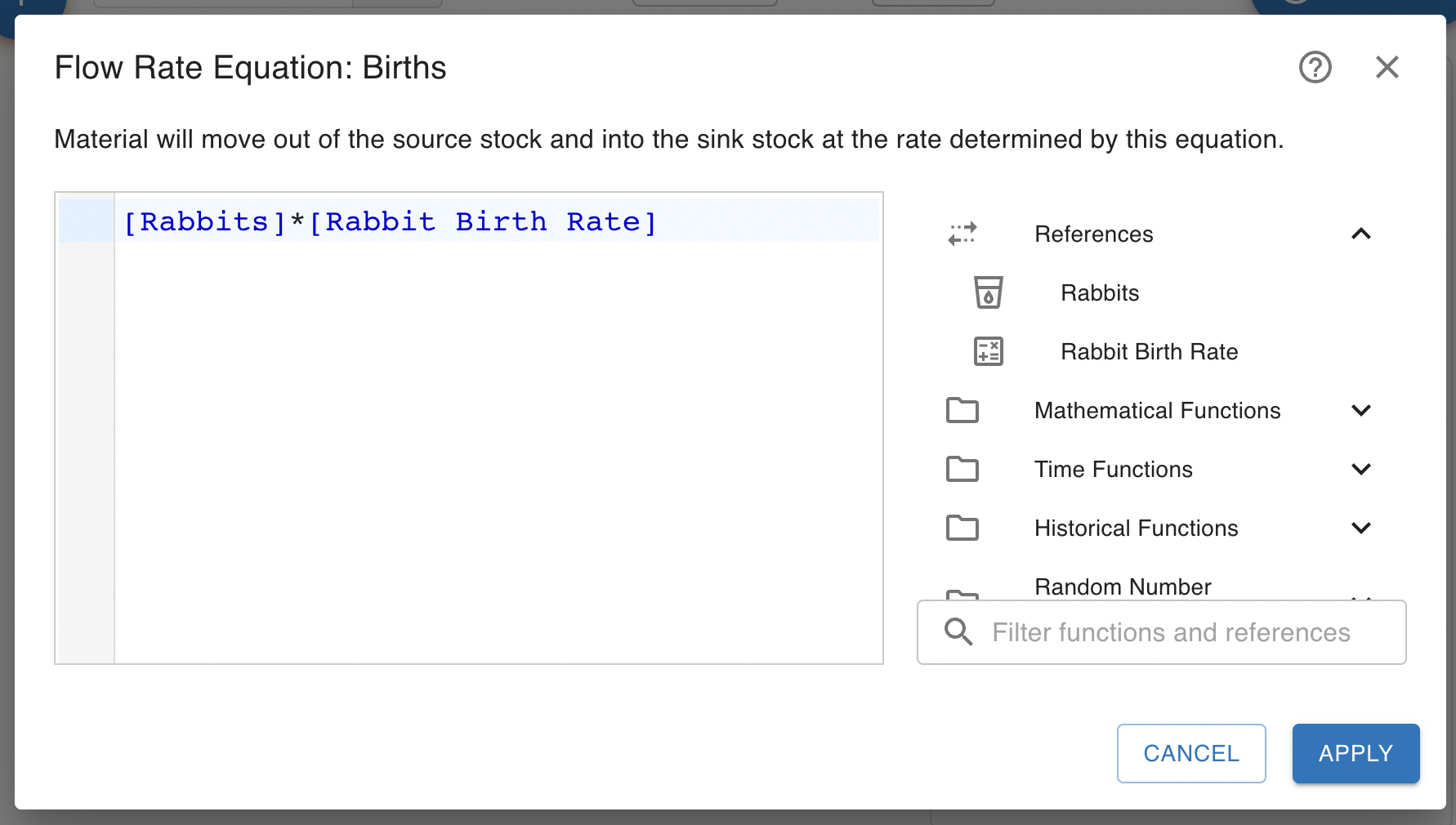
The equation editor allows you to type in an equation. On the right of the editor are a list of primitives this primitive can reference and a list of functions built into Insight Maker. You can click on one of these to insert it into the equation.
Basic Arithmetic
At their simplest, equations are arithmetic. Insight Maker supports the standard mathematical operators:
| Operator | Meaning | Example | Result |
|---|---|---|---|
+ |
Addition | 1 + 2 |
3 |
- |
Subtraction | 5 - 2 |
3 |
* |
Multiplication | 2 * 3 |
6 |
/ |
Division | 9 / 3 |
3 |
^ |
Exponentiation | 2^4 |
16 |
mod |
Remainder | 13 mod 5 |
3 |
Operators follow the standard order of operations: exponents bind tighter than multiplication and division, which bind tighter than addition and subtraction. Try removing the parentheses in the second example below to see the result change:
Numbers may be written with decimals (3.14), or in scientific notation (1.5e3 is 1,500):
Referencing Other Primitives
Equations become models when they reference other primitives. Square brackets refer to the value of another primitive in your model:
This example displays a number of features that the Insight Maker equation engine supports:
Yearsrefers to the current simulation time as measured in years.[Rain Flow]refers to the value of another primitive. Primitives can reference each other using this square-bracket notation.Sinapplies the trigonometric sine function.+,*, and^are all standard mathematical operators representing addition, multiplication and exponentiation respectively.
A primitive can only reference primitives it is connected to. You can connect primitives using Links. Flows are automatically connected to the stocks they fill and drain.
In the model below, the Births flow references both the Population stock and the Birth Rate variable, and Deaths does the same with Death Rate. Try changing either rate:
Comparisons and Logic
Equations can compare values and combine the results with logical operators. Comparisons return the Boolean values true or false:
| Operator | Meaning |
|---|---|
= |
Equal to |
<> or != |
Not equal to |
<, > |
Less than, greater than |
<=, >= |
Less than or equal, greater than or equal |
and |
True if both sides are true |
or |
True if either side is true |
not |
Inverts a Boolean |
When used in arithmetic, true is treated as 1 and false as 0, which is useful for switching terms of an equation on and off.
Making Decisions
The IfThenElse function selects between two values based on a condition:
For more complex logic, Insight Maker also supports multi-line If-Then-Else statements with as many Else If clauses as you need:
See Advanced Equations for the full set of programming constructs including loops, error handling, and object-oriented programming.
Built-in Functions
Insight Maker includes a large library of built-in functions for mathematics, statistics, time, randomness, vectors, strings, and agent-based modeling. A few examples:
Function names, like other variables in Insight Maker equations, are case-insensitive: Round, round, and ROUND are the same function. The complete function list, with descriptions and examples, is in the Built-in Functions reference.
Vectors
Vectors collect multiple values in a single value. They are important to vectorized models and agent-based modeling:
See the Vectors documentation for a more on working with vectors.
Time in Equations
Insight Maker re-evaluates equations at every step of the simulation, not just once.
The following equations are time-dependent and will return different results and different points in the simulation:
Various functions can help you work with time. For instance Step for sudden changes, Ramp for gradual ones, Pulse for one-off or repeating spikes, and Seasonal for annual cycles:
Randomness
Random number functions let you model uncertainty. Rand() returns a uniform random number between 0 and 1 (or between a minimum and maximum you provide), and functions like RandNormal, RandTriangular, and RandPoisson draw from other distributions. Because equations are re-evaluated each time step, a random function produces a new value at every step:
Use SetRandSeed() in your model's Macros to make random simulations reproducible, and see Sensitivity Testing for running many random simulations to understand the resulting distribution of outcomes.
Units
You may also use units within equations. You can add units to a number by surrounding the number and units with curly brackets "{" "}". Insight Maker automatically converts between compatible units and reports an error if your equations combine incompatible units:
The Units documentation covers units in depth, including how to declare them on the primitives of a model.
Multi-line Equations
An equation may span multiple lines. Intermediate results can be stored in local variables with the <- operator, and the value of the last statement is the result of the equation (you can also use an explicit return statement):
Local variables exist only within the equation being evaluated. To share values or functions across all the equations in a model, use Macros and Globals.
Defining Your Own Functions
You can define reusable functions directly within an equation. A single-line form:
And a multi-line form:
Functions defined in an equation are local to that equation. Define them in your model's Macros to make them available throughout the model. Learn about more capabilities in the Advanced Equations section.